
Tasks. Focus. A little room to pause.
A break reminder timer you can make your own
Set the rhythm once, then let ScreenSky remind you when it is time to pause. Choose work intervals, short breaks, and longer time away, with working hours and Smart Pause to help the timer fit your day.
3-day free trial · No credit card required
Apple silicon · macOS 14.4+ · Apple silicon Mac (M1 or newer)

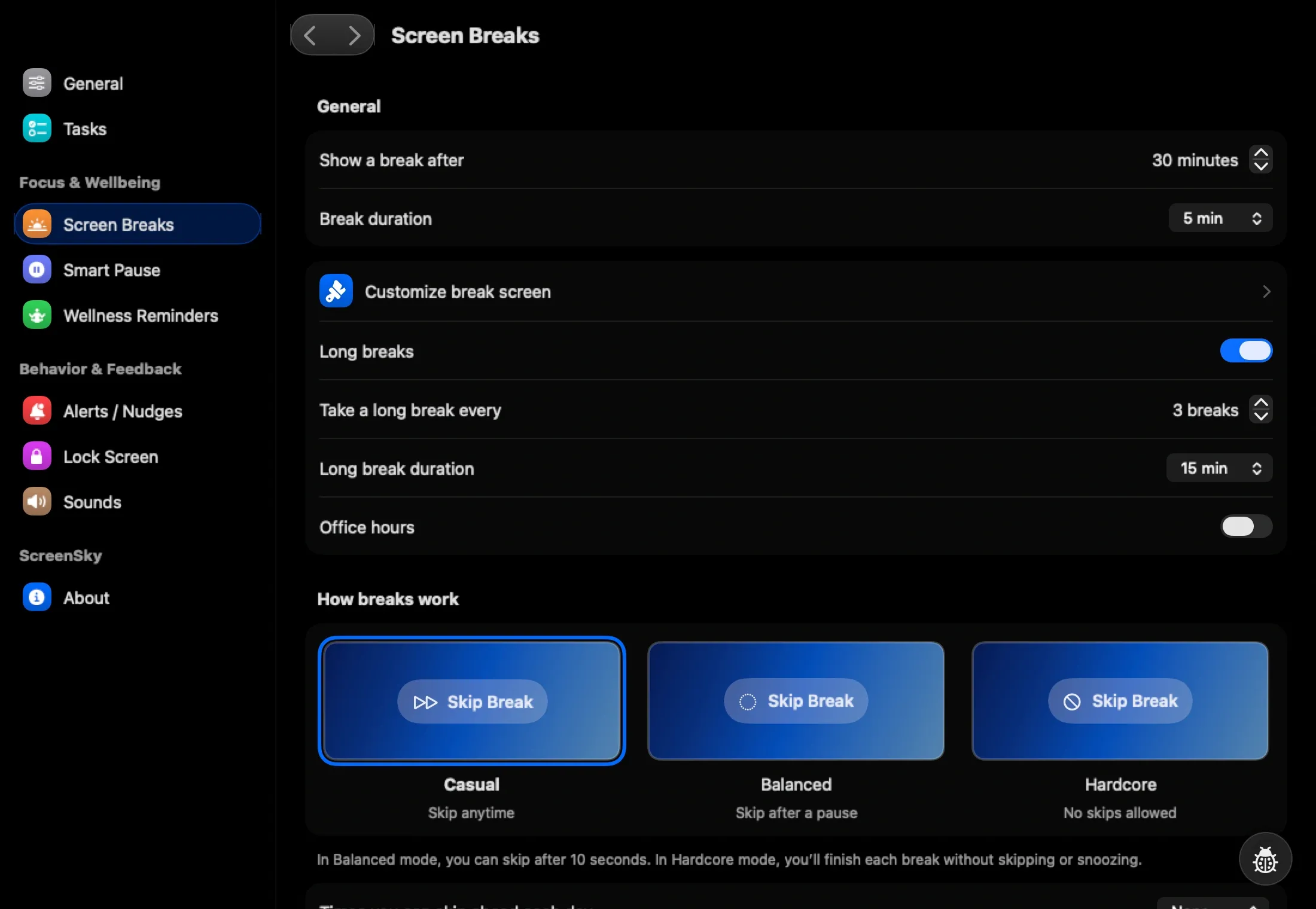
Set work time and time away
New setups start with 30 minutes of work, a five-minute short break, and a 15-minute long break every three breaks. Adjust the values in Settings to suit your routine.
These are app defaults, not a prescribed health schedule. Choose timings you can follow, then adjust them after a normal working session.
Finish the thought before you pause
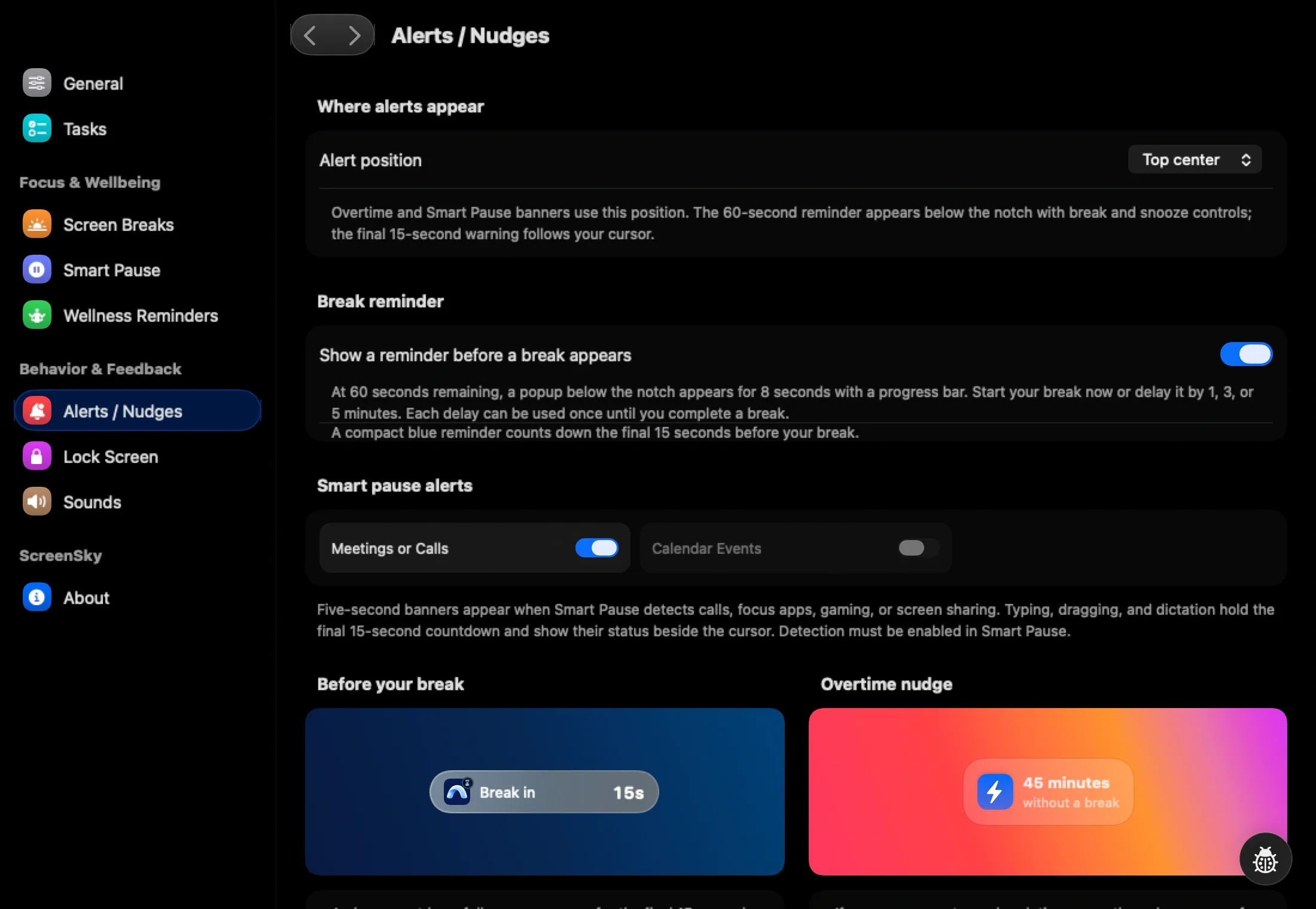
Enable the upcoming-break reminder to get a heads-up before the break begins. Start early or use the available delay options when you need a moment to wrap up.
Configure snooze and skip rules, and choose whether you want the optional floating countdown near the break.
Keep the timer within your workday
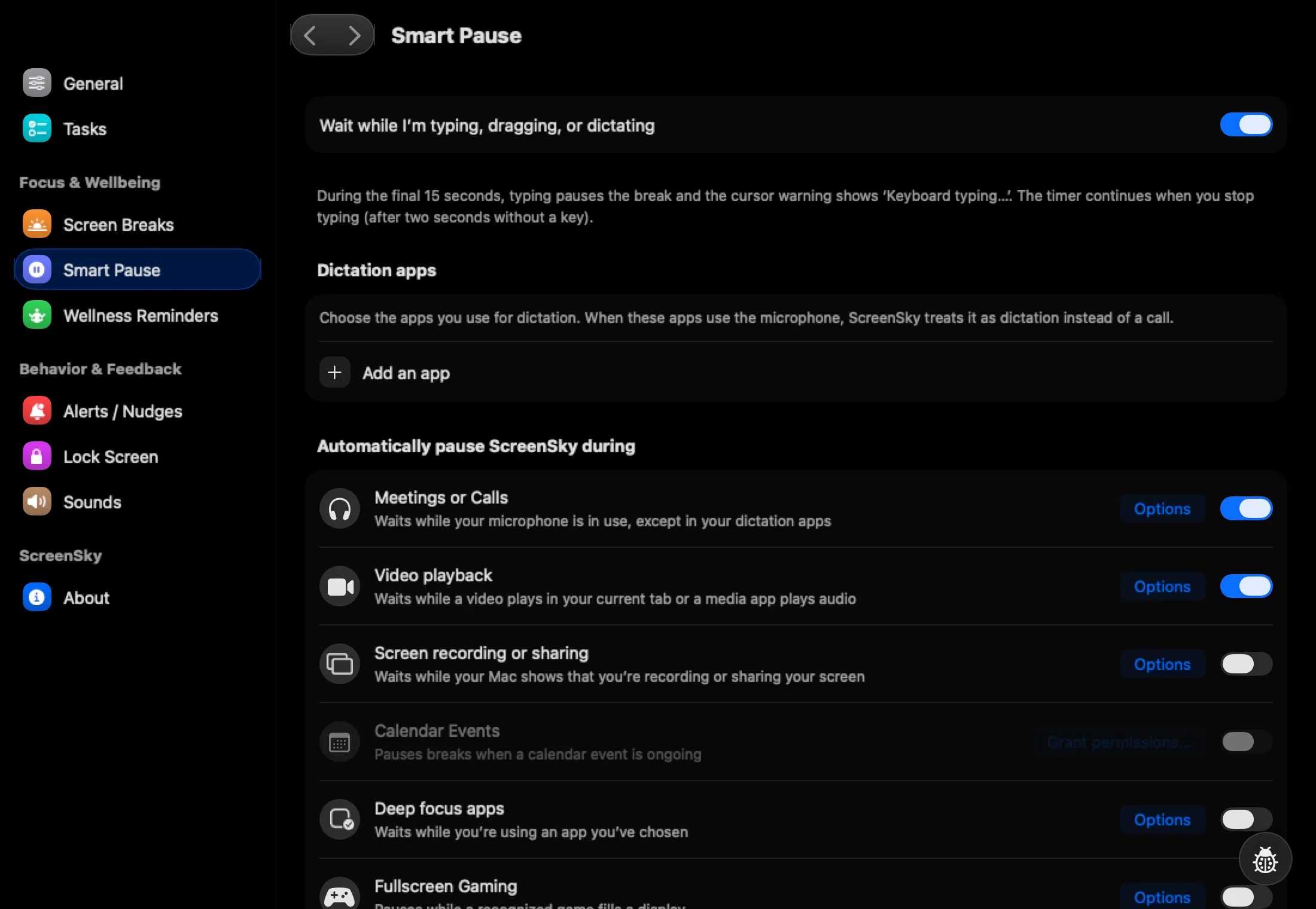
Set working hours so your routine has a start and finish. Smart Pause can hold the timer during supported activities such as microphone use, playback, selected apps, or time away.
Detection depends on your settings, the apps involved, and macOS permissions. Check when the timer pauses and resumes in your own setup.
Build your first work and break cycle
- 01
Choose a work interval
Open Screen Breaks in ScreenSky Settings. Pick a work interval that fits a task you actually need to do, rather than a schedule you will repeatedly postpone.
- 02
Set short and long breaks
Choose how long each break lasts and how often the longer break occurs. Set working hours and review snooze or skip options.
- 03
Leave a note and take the break
Put your current task in progress and write its next action in the notes. When the reminder arrives, step away. Come back to that note before opening another task.
Questions about your break routine
Can I use a break reminder timer without downloading an app?
Yes. Open our free work-break timer in your browser. No account is required. Keep the tab open; you start each work and break interval yourself, and background browser updates may be delayed.
How is the Mac app different from the browser timer?
ScreenSky provides scheduled Mac screen breaks, working hours, Smart Pause, and separate posture and blink reminders alongside a local task board. The browser tool is a manual way to try intervals and leave a session note.
Is this a Pomodoro timer?
ScreenSky is a configurable take-a-break reminder app rather than a fixed Pomodoro schedule. You choose your intervals and break lengths. Read our break timer versus Pomodoro guide if you are deciding which routine fits your work.
What does ScreenSky cost after the trial?
Try ScreenSky free for 3 days. No credit card required. Afterward, choose a one-time license. Compare current plans and update terms. Apple silicon · macOS 14.4+. Apple silicon Mac (M1 or newer).