Tasks. Focus. A little room to pause.
How to purchase & activate ScreenSky
From checkout to your first task. Follow these five steps to make ScreenSky yours.
Step 1
Open the checkout
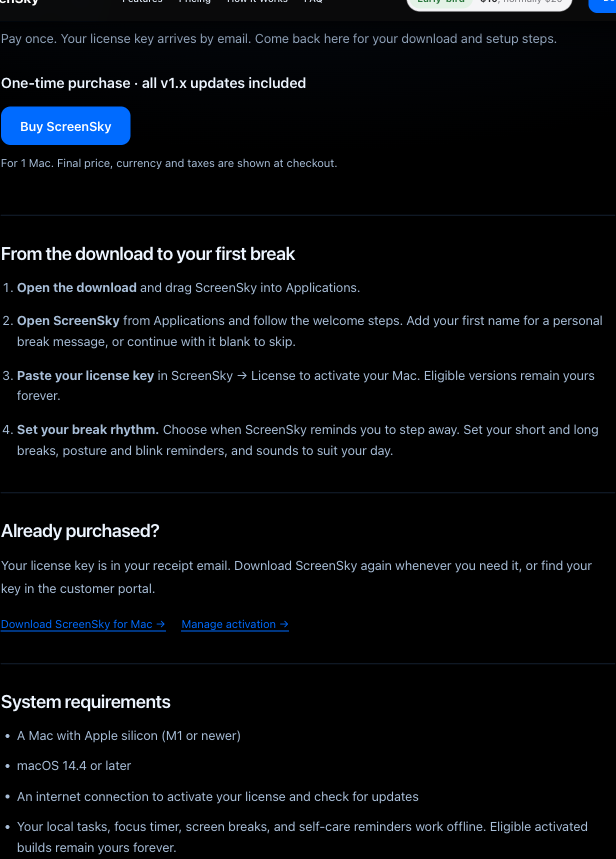
Compare ScreenSky plansReview the plan’s included updates and Mac seats on the pricing page, then choose the plan you want. ScreenSky is a one-time purchase.
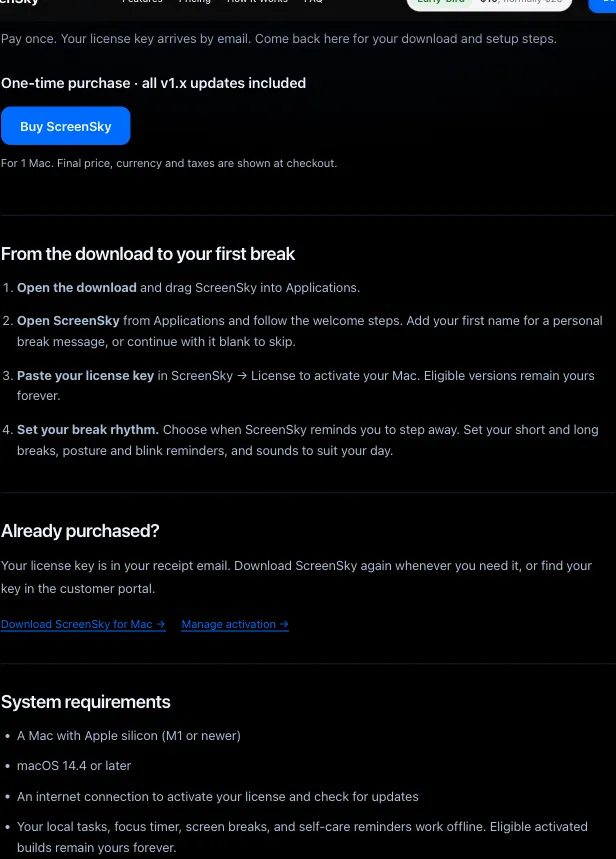
Choose a plan to open the secure Dodo Payments checkout. Select the screenshot to enlarge. Step 2
Enter your details and pay
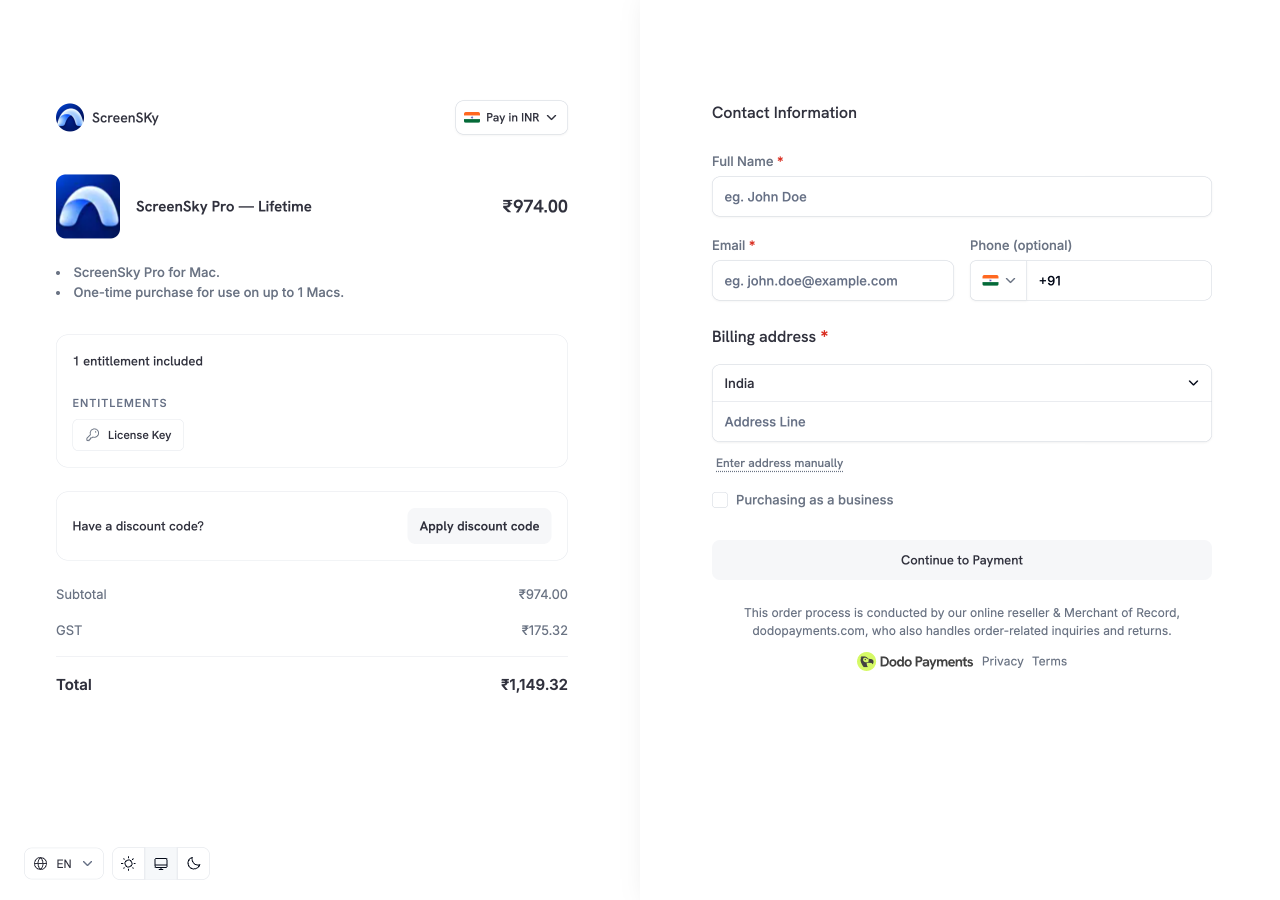
Enter your full name, email address and billing address. Use an email you can access: your license key will be sent there.
Have a discount code? Choose Apply discount code and check that the total updates before continuing. Then choose Continue to Payment, select an available payment method and complete your purchase.
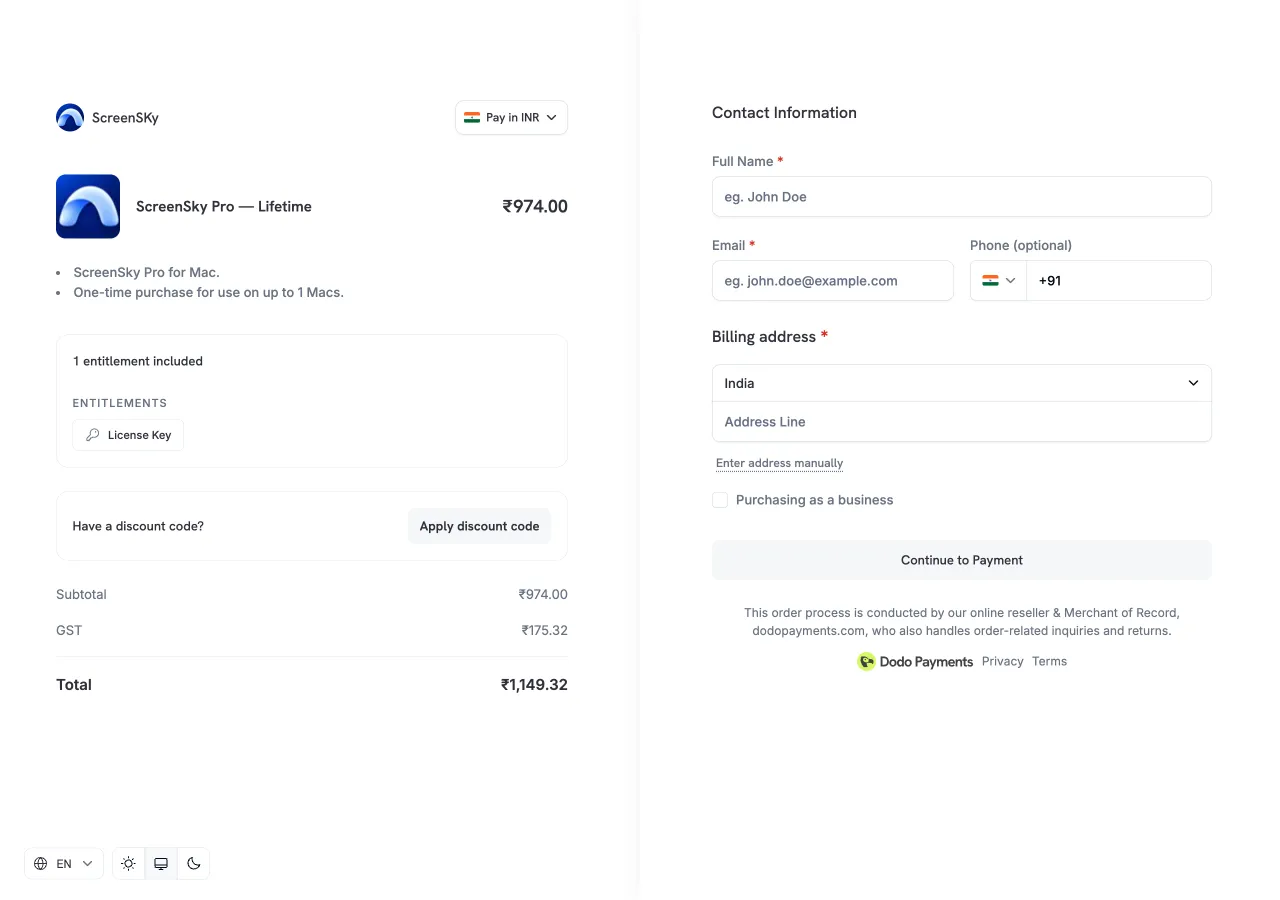
Actual checkout. Currency, taxes, price and payment options may vary by location. Select the screenshot to enlarge. Step 3
Find your key. Download the app.
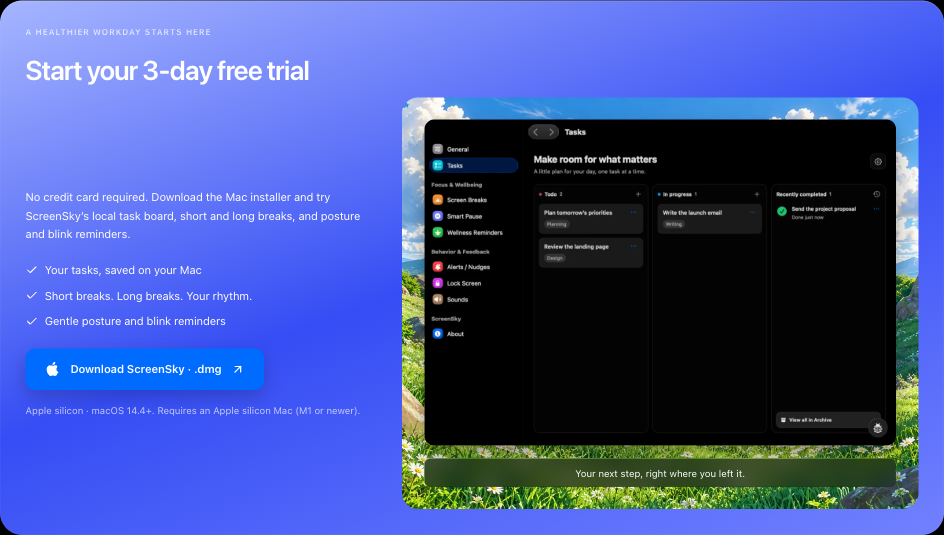
Download ScreenSky for MacAfter checkout, return to ScreenSky and choose Download for Mac · .dmg. Check your Dodo Payments receipt email for your license key. If a key appears on the return page, you can also use Copy license key.
Open the downloaded DMG, drag ScreenSky into Applications, then open ScreenSky from Applications and follow the welcome steps.
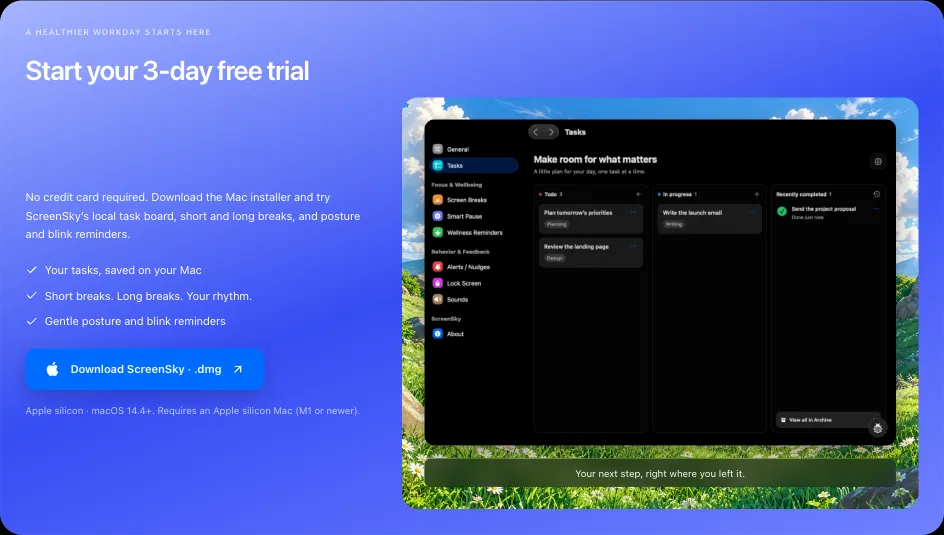
Use the download page any time you need the installer. Your license key arrives by email after payment is confirmed. Select the screenshot to enlarge. Step 4
Activate ScreenSky on your Mac
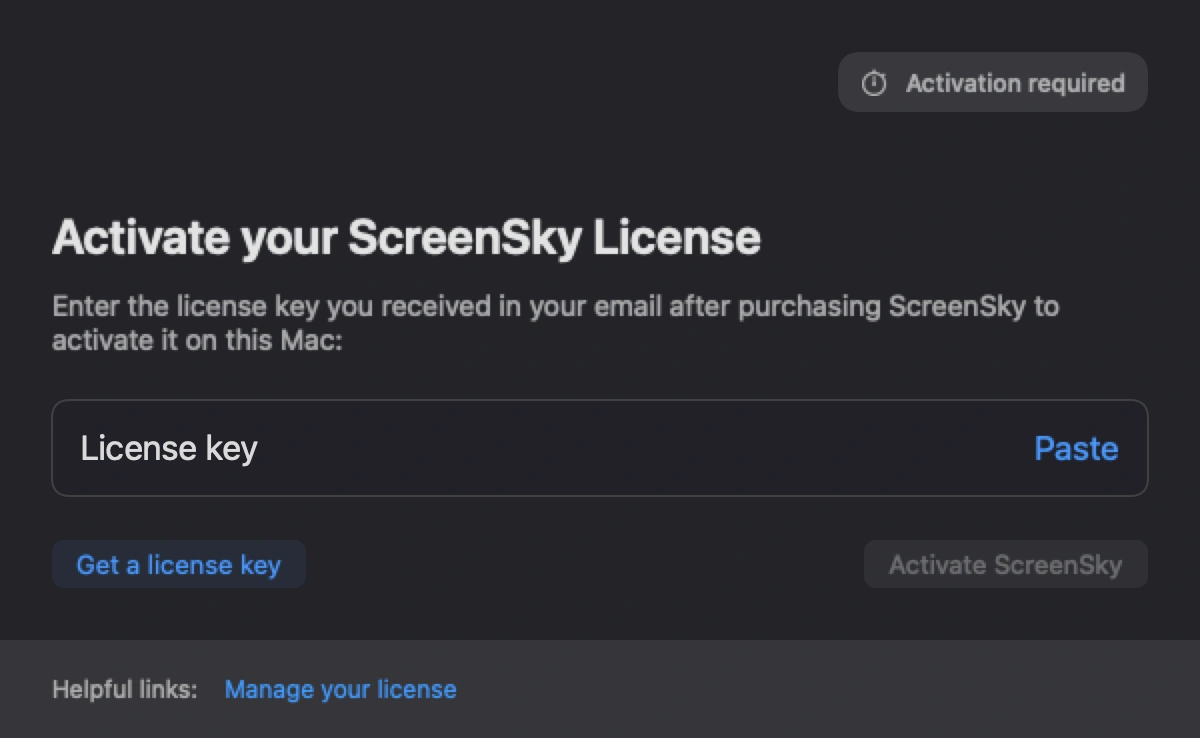
Open the ScreenSky menu in your Mac’s menu bar and choose License…. Copy the key from your receipt email, then choose Paste in the license window.
Choose Activate ScreenSky while connected to the internet. You can activate during your free trial too; there is no need to wait for it to end.
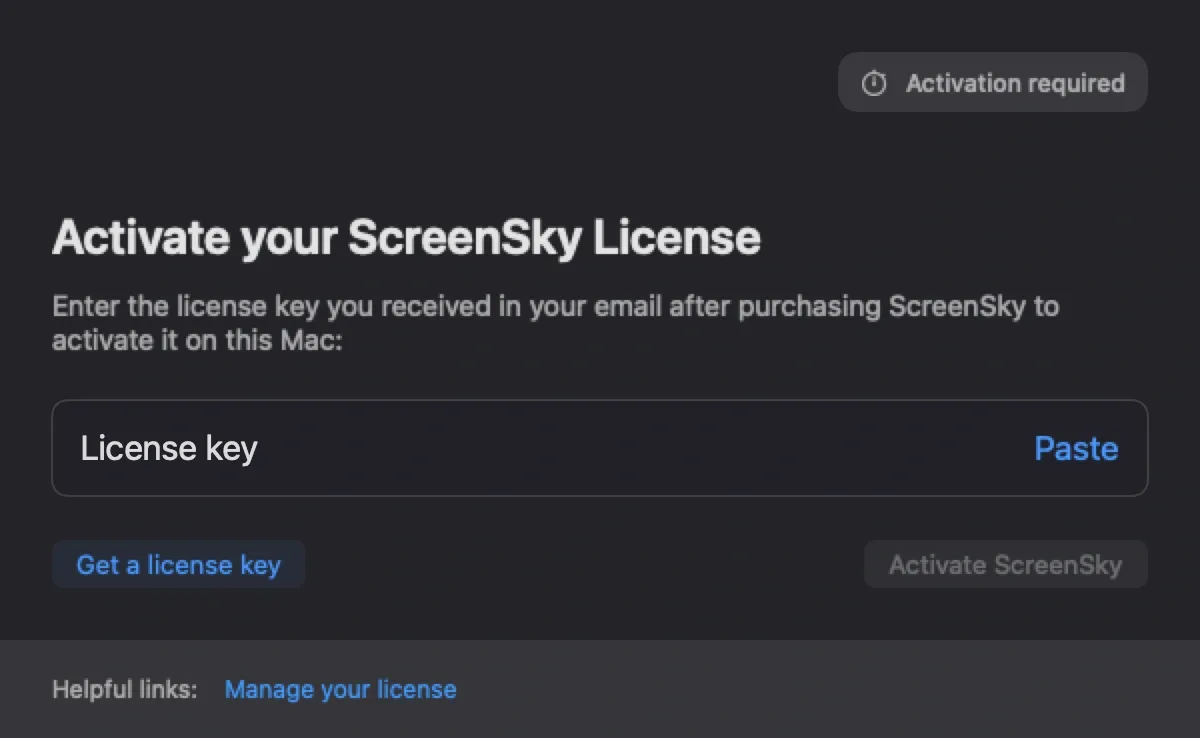
The app’s activation screen, shown with an empty key field. Select the screenshot to enlarge. Step 5
You’re ready to go
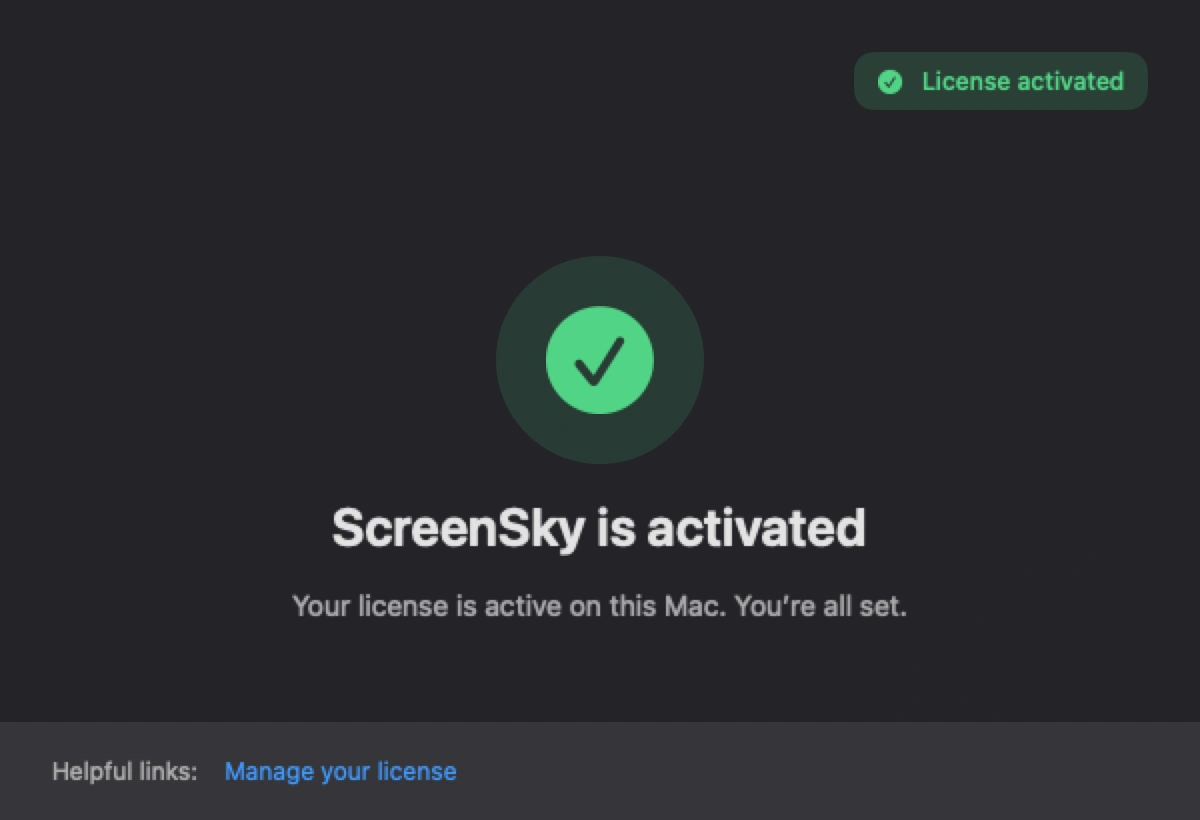
A successful activation confirms “ScreenSky is activated”. The license window may close and take you to Settings. You can reopen License… to check your status.
Your local tasks, focus timer, screen breaks and self-care reminders work offline. Your included versions remain yours to use permanently.
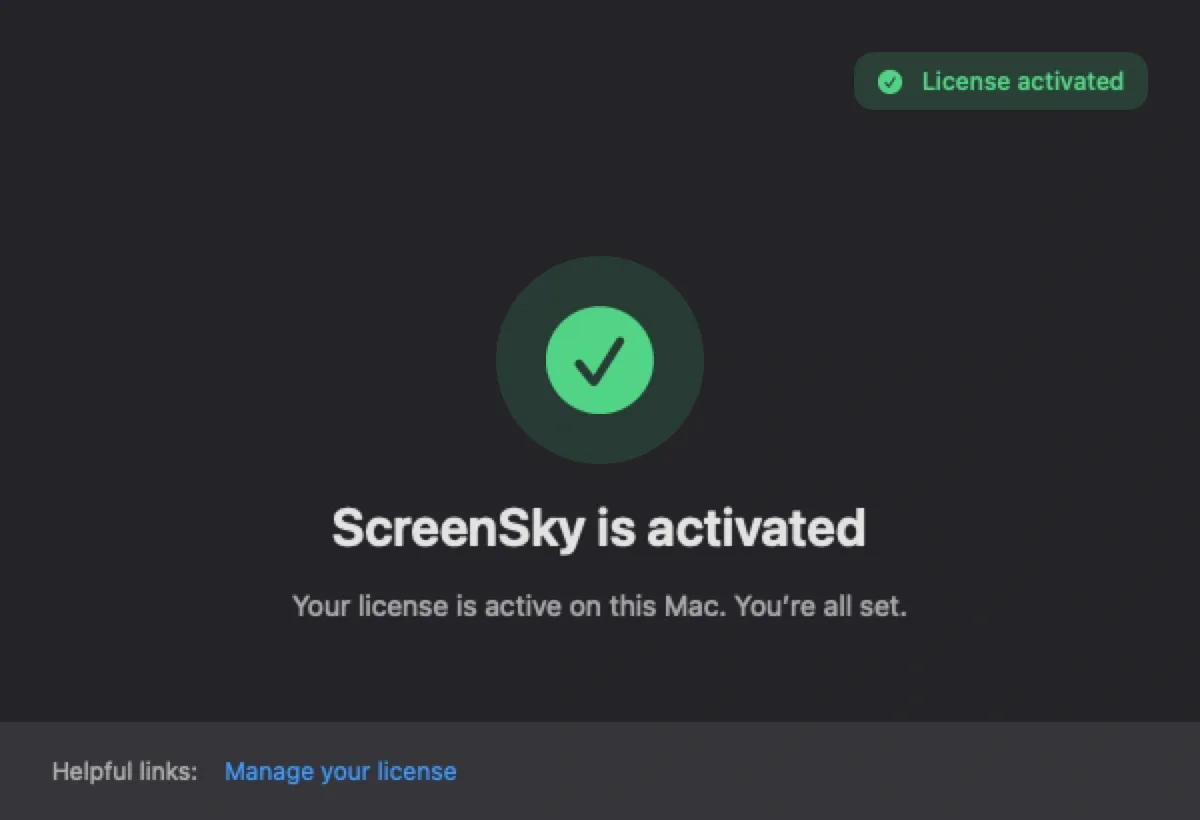
The app’s confirmation screen, shown with a sample activated state. Select the screenshot to enlarge.