Best To-Do Apps for 2027: Find the Right App for Your Workflow
By ScreenSky · · Updated
Compare seven to-do apps for 2027 by workflow, platform, pricing model, and limitations. Find a fit for daily planning, shared project work, or focused Mac work.

On this page
- The best to-do apps for 2027 at a glance
- How we chose these to-do apps
- Todoist: for planning across devices
- TickTick: for tasks, calendars, and habits together
- Things 3: for personal planning on Apple devices
- Apple Reminders: for everyday Apple lists
- Microsoft To Do: for free daily planning with Microsoft
- ScreenSky: for local Mac tasks with scheduled breaks
- ONES.com: for shared project planning beyond personal lists
- How to choose a to-do app you will keep using
- Questions about choosing a to-do app for 2027
- Pick the app for the job you need done
For general task planning across devices, start with Todoist. Choose TickTick if you want tasks, calendar views, habits, and a Pomodoro timer together. Things 3 suits personal planning on Apple devices, while Apple Reminders and Microsoft To Do are sensible starting points for everyday lists.
If your work happens on a Mac and you want a local task board alongside scheduled screen breaks, consider ScreenSky. Its fit is narrower: keeping your tasks and workday pauses together on one Mac.
Research date: 10 November 2026. This guide looks ahead to 2027 using currently documented features. Plans and availability can change; it does not predict future releases. ScreenSky publishes this guide and is one of the apps included. Recommendations reflect documented capabilities and editorial judgment, rather than hands-on comparative testing.
Collaboration disclosure: ONES supplied its entry as part of a reciprocal content collaboration with ScreenSky. We checked its product and pricing documentation on 18 November 2026; we have not hands-on tested ONES. The other product research dates remain as recorded below.
The best to-do apps for 2027 at a glance
-
Todoist: for capturing and organizing tasks across devices.
-
TickTick: for combining tasks with calendars, habits, and a focus timer.
-
Things 3: for personal projects and daily planning on Apple devices.
-
Apple Reminders: for everyday lists within the Apple ecosystem.
-
Microsoft To Do: for free personal lists and Microsoft integration.
-
ScreenSky: for local Mac tasks, screen breaks, and posture and blink prompts.
-
ONES.com: for shared project planning beyond personal lists.
| App | Strongest fit | Platforms | Cost model | Main consideration |
|---|---|---|---|---|
| Todoist | General planning across devices | Desktop, mobile, and web | Free plan; paid subscriptions | Check paid-plan requirements for your preferred planning views |
| TickTick | Tasks, calendars, habits, and Pomodoro | Desktop, mobile, and web | Free plan; Premium subscription | Some calendar capabilities and higher limits require Premium |
| Things 3 | Personal Apple planning | Apple devices | Separate one-time app purchases | No Windows, Android, web app, or real-time shared lists |
| Apple Reminders | Everyday Apple lists | Apple devices; iCloud web access | Included with supported Apple devices | Features depend on OS and account; full feature set uses iCloud |
| Microsoft To Do | Daily lists with Microsoft | Desktop, mobile, and web | Free with a personal Microsoft account | Check eligibility for work or school accounts |
| ScreenSky | Local tasks and scheduled screen breaks | Apple silicon Mac, macOS 14.4+ | One-time purchase for 1 Mac, with update coverage by plan | No cross-device sync, shared lists, due dates, or calendar planning |
| ONES.com | Shared project planning and delivery coordination | Web; cloud and self-hosted deployment options | Cloud free plan up to 30 seats; paid subscriptions | Agree on team workflows; advanced planning capabilities depend on the plan |
Platform references: Todoist downloads, TickTick downloads, Things availability, and ScreenSky requirements. Cost-model references are linked in each section below.
How we chose these to-do apps
The useful question is what happens after you capture a task. Do you need to schedule it, share it, see it on your phone, or keep it visible while you work on your Mac?
We compared seven apps using five criteria:
- Capture and organization: How do tasks enter the app, and how can you group them?
- Planning: Does the app support the deadlines, recurring work, or calendar views you need?
- Devices and sharing: Can you reach the list where you need it and work with other people?
- Workday support: Are timers or scheduled breaks part of the workflow?
- Cost and limits: What is free, what requires payment, and what is missing?
The descriptions below use official product and support pages. The best-for labels are our judgment about fit. This shortlist covers personal task management and a team-project option. Teams needing resource planning, dependencies, and reporting should compare those requirements and the relevant plan coverage.
Todoist: for planning across devices
Todoist is a good starting point when tasks arrive throughout the day and you need to organize them quickly. Its natural-language Quick Add, recurring due dates, projects, and task views support both capture and later planning. Shared projects also make it relevant when some tasks involve another person. See Todoist’s feature overview.
For example, a freelancer might separate client work into projects and use recurring tasks for regular admin. That is a different requirement from keeping a short list beside one workstation.
The tradeoff: Check the plan before choosing a workflow around a particular view or limit. Todoist offers a free Beginner plan alongside paid Pro and Business subscriptions; its pricing comparison explains what each includes.
Choose it if: You need a general task system that follows you between devices and can accommodate shared work.
For a closer look at local tasks and breaks versus broader planning, read ScreenSky vs Todoist.
TickTick: for tasks, calendars, and habits together
TickTick brings task lists, calendar views, habit tracking, and a Pomodoro timer into one product. It is worth considering if you currently keep those activities in separate apps and want to review them together. Its official features page documents those tools, including list sharing and task assignment.
A typical fit is someone who wants to plan the day’s tasks, allocate time, and run a focus session from the same app. The built-in extras are the reason to consider it; decide which you will actually use.
The tradeoff: The free and paid experiences differ. Check TickTick Premium for calendar options and capacity limits before moving an established planning system into it.
Choose it if: You want task management, habits, and focus sessions together and are comfortable configuring several tools.
Read ScreenSky vs TickTick if you are deciding between that broader toolkit and a local Mac task board with scheduled screen breaks.
Things 3: for personal planning on Apple devices
Things 3 is built around personal tasks and projects. Areas, project headings, Today, and Upcoming give you ways to separate ongoing responsibilities from what you intend to do next. Its feature guide explains that structure.
It suits someone who wants to plan a day’s work while keeping larger projects organized. If your devices are all Apple products, its platform focus may fit your setup well.
The tradeoff: Things is a one-time purchase, but the Mac, iPhone, iPad, and Vision apps are sold separately. It has no Windows, Android, or browser app, and it does not support real-time sharing of tasks or lists. Those details are explicit in Things’ purchasing and availability guide.
Choose it if: Personal planning is your priority, you use Apple devices, and shared task lists are not a requirement.
Read ScreenSky vs Things 3 to compare personal planning with ScreenSky’s local board and break routine.
Apple Reminders: for everyday Apple lists
Start with Apple Reminders if you already use Apple devices and need a dependable place for everyday tasks. It supports lists, scheduled reminders, Siri capture, and collaboration. Apple’s getting-started guide is a useful overview.
You can also organize reminders with tags and Smart Lists. For example, tagging errands lets you gather related tasks without moving them out of their original lists. Apple documents tags on Mac and Smart List filters.
The tradeoff: Feature availability depends on your OS and account. Apple’s documentation notes that the full set of described features requires updated iCloud reminders; other accounts may offer fewer options.
Choose it if: You want everyday lists on Apple devices without buying another task app first.
See ScreenSky vs Apple Reminders if scheduled screen breaks are also part of your decision.
Microsoft To Do: for free daily planning with Microsoft
Microsoft To Do is worth considering when you want straightforward lists and a daily plan, especially if Outlook is already part of your work. My Day helps bring selected tasks into view, and the app connects with Outlook tasks. Microsoft describes these features on its To Do product page.
The practical appeal is a focused daily list: choose what needs attention today, then work through it without designing a larger project system.
The tradeoff: Account eligibility matters. Microsoft To Do is free with a personal Microsoft account, while work and school accounts need supported licensing. Check Microsoft’s account requirements before adopting it for an organization.
Choose it if: You want free personal task lists, daily planning, and a connection to Microsoft’s ecosystem.
Read ScreenSky vs Microsoft To Do for the differences between synced daily lists and ScreenSky’s local Mac workflow.
ScreenSky: for local Mac tasks with scheduled breaks
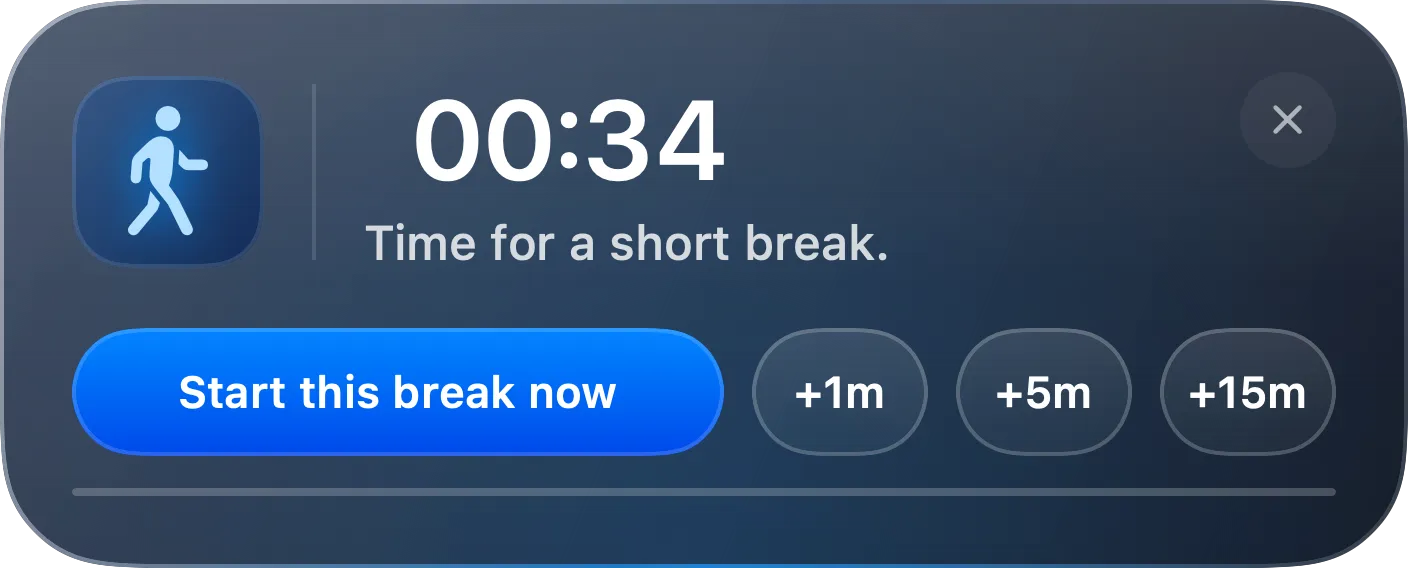
ScreenSky combines a local task board with configurable screen breaks and posture and blink reminders. Capture a task with Control + Space, add notes, and move work through Todo, In progress, and Done. Completed tasks remain available in the archive.
You can show pending tasks on the break screen to review what comes next, or hide them for a quieter pause. Short and long breaks, timing, and reminder sounds are configurable. The ScreenSky FAQ covers those controls and offline behavior.
The tradeoff: ScreenSky runs on Apple silicon Macs with macOS 14.4 or later. Tasks stay on one Mac. It does not include iPhone sync, shared lists, due dates, recurring tasks, or calendar planning. Choose another app if those are essential to your system.
Choose it if: You want a simple local task board and a scheduled break routine on your Mac.
ScreenSky lists one-time plans for one Mac. The pricing page shows a plan with one year of updates and a separate lifetime-updates plan. Check current ScreenSky pricing for both offers.
ONES.com: for shared project planning beyond personal lists
ONES.com combines project and knowledge management for teams whose tasks need shared ownership, workflows, and delivery context. Rather than treating each item as a private reminder, teams can organize work with configurable issues and keep supporting documentation together.
Its project management capabilities include backlog and release management, Gantt planning, dependencies, resource planning, and reporting. The relevant fit is coordinating work across people and projects, rather than maintaining a short personal checklist.
The tradeoff: A team should agree on its workflow and ownership before configuring the workspace. ONES Cloud has a free plan for up to 30 seats; paid subscriptions add capabilities. Check plan coverage for Gantt charts, automation, and resource scheduling before choosing a workflow around them.
Choose it if: Your tasks form part of a shared project and you need planning, documentation, and delivery visibility beyond an individual to-do list.
How to choose a to-do app you will keep using
Before migrating every task, answer four questions.
Where must your tasks be available? If you capture errands on your phone and work on a computer, check both devices first. If you share a household list, make sure everyone can access it.
Do you plan by dates or by task status? Deadlines, recurring work, and calendar scheduling require different capabilities from a board that shows what is waiting, active, and finished. ScreenSky’s board suits the latter; it does not replace a deadline planner.
Who else needs the list? Shared work should drive the choice early. Things 3 and ScreenSky are poor fits when real-time shared lists are essential.
What support do you want while working? A task reminder, a Pomodoro session, and a full-screen break serve different purposes. Compare the behavior you need instead of treating every timer as equivalent.
Then try a small routine for one working week:
- Add ten real tasks, including one you often forget.
- Set up one actual project or responsibility.
- Add a recurring task if that is part of your normal week.
- Check the list on every device you need.
- At the end of the week, note what you still had to track elsewhere.
Keep your existing task system until you know the candidate covers those needs. A short trial is easier to evaluate than a full migration followed by another switch.
Questions about choosing a to-do app for 2027
What is the best free to-do app?
Start with Apple Reminders if you use Apple devices, or Microsoft To Do if you want a free personal account option in Microsoft’s ecosystem. Todoist and TickTick also have free plans. Compare your required features with each plan’s limits before deciding.
What is the best to-do app for Mac?
Things 3 is worth considering for personal projects and daily planning. Apple Reminders suits everyday Apple lists. Todoist and TickTick are useful candidates when tasks must also be available on other platforms. ScreenSky fits local Mac tasks alongside scheduled screen breaks.
Which to-do apps have a one-time purchase?
Things 3 sells its platform apps separately as one-time purchases. ScreenSky sells one-time licenses for one Mac, with update coverage that depends on the plan. These purchases have different scopes, so check the platform coverage and update terms.
Does ScreenSky sync tasks with an iPhone?
No. ScreenSky is Mac-only, and its tasks stay on your Mac. Choose a product with documented device sync if you need the same list on your phone and computer.
Pick the app for the job you need done
Start with Todoist for general planning across devices, or TickTick if calendars, habits, and focus sessions belong in the same app. Consider ONES.com when the main requirement is coordinating a team project rather than organizing personal reminders. Consider Things 3 for personal Apple planning. Try Apple Reminders or Microsoft To Do before paying if everyday lists cover your needs.
If you want to keep tasks on your Mac and build scheduled pauses into your workday, explore ScreenSky and check its current pricing. Choose based on the work you need to manage and the way you want your day to run.
If you keep losing your place across several tasks, try the three-task test for Mac to-do apps during your next workday.
Sources
- Todoist features (checked )
- TickTick features (checked )
- Things (checked )
- Apple Reminders (checked )
- Microsoft To Do (checked )
- ScreenSky features (checked )
- ONES product overview (checked )
- ONES project management (checked )
- ONES pricing (checked )