Guide to Finding the Best Break Reminder App for a Multi-Monitor Mac Setup
By ScreenSky ·
Test Mac break reminders across displays, full-screen Spaces, and dock changes so the prompt reaches the screen you actually use.

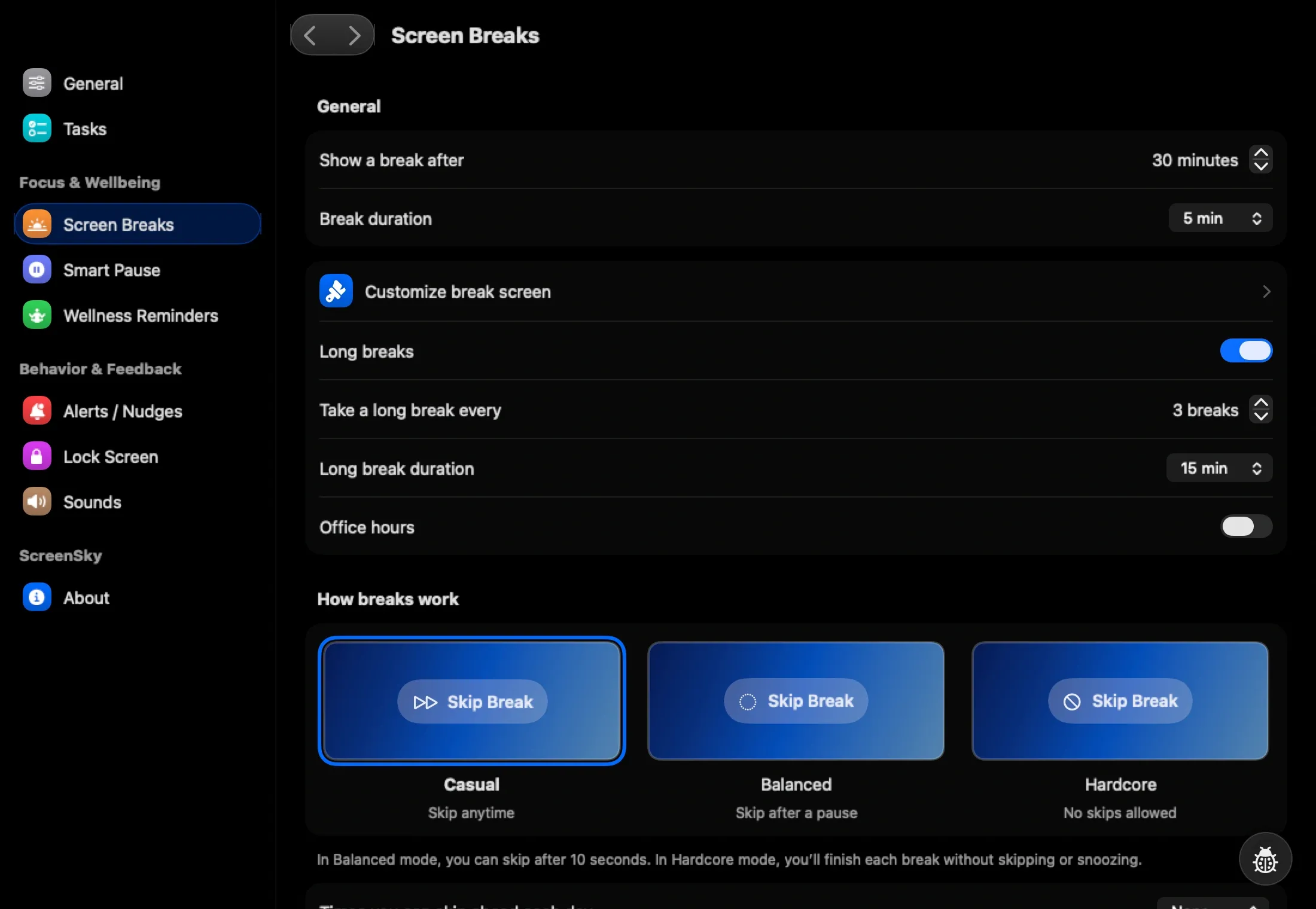
Choose a Mac break timer that is visible from the display where you spend most of your time. Decide whether you want all displays covered during a break or a cue near your active window. Then test that choice with the Mac docked exactly as you normally use it.
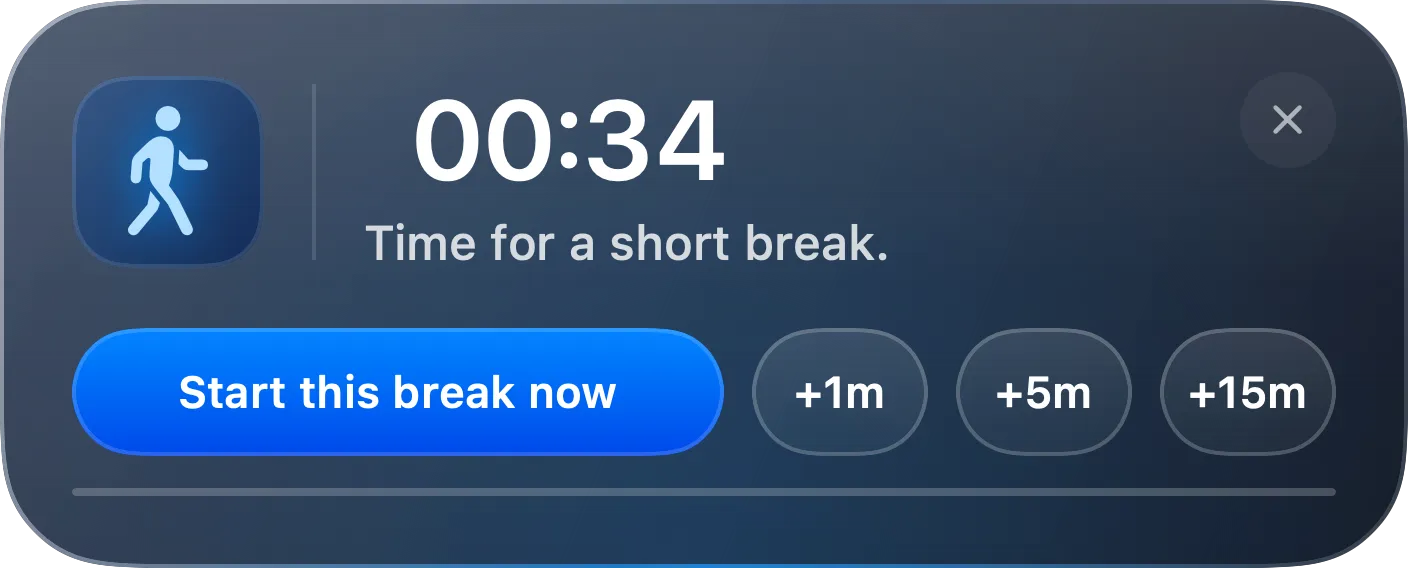
ScreenSky’s Mac app is designed to open a break overlay for each connected screen. Its advance heads-up follows the display under the pointer. That gives you two useful things to verify on your own hardware. Start a break and check both screens, then see where the next warning appears when your pointer is on the other display.
Try the display setup that gives you trouble
| Setup | What to check |
|---|---|
| Laptop plus one monitor | Look at the external display when the warning fires. Move the pointer and repeat. |
| Two external monitors | Let the break start and check whether each display shows the overlay. |
| A full-screen app on either display | Check visibility with the app in its own Space. |
| A dock you connect and disconnect often | End the break, change your setup, and let the next one start. |
Keep the trial away from a live presentation. If you share only one window, run a private test call and look at what the other participant can see. If a cue lands on the wrong screen, check its placement controls or whether the timer lets you choose a single display.
Sources
- ScreenSky break screen and preview (checked )
- ScreenSky advance warning and countdown (checked )